
Text Extraction
Text Extraction processes your uploaded PDFs to extract page-by-page text, making them ready for advanced features like Theory & Background generation.
What this section is about
While basic text is extracted during upload, the Text Extraction tool provides more thorough processing. It ensures every page is properly indexed and available for AI analysis, which is required for some generation features.
When you should use this
Use Text Extraction when you:
• See "Extraction required" warnings on documents
• Want to prepare documents for Theory or Methods generation
• Need to re-extract after upload issues
• Want to verify page content was captured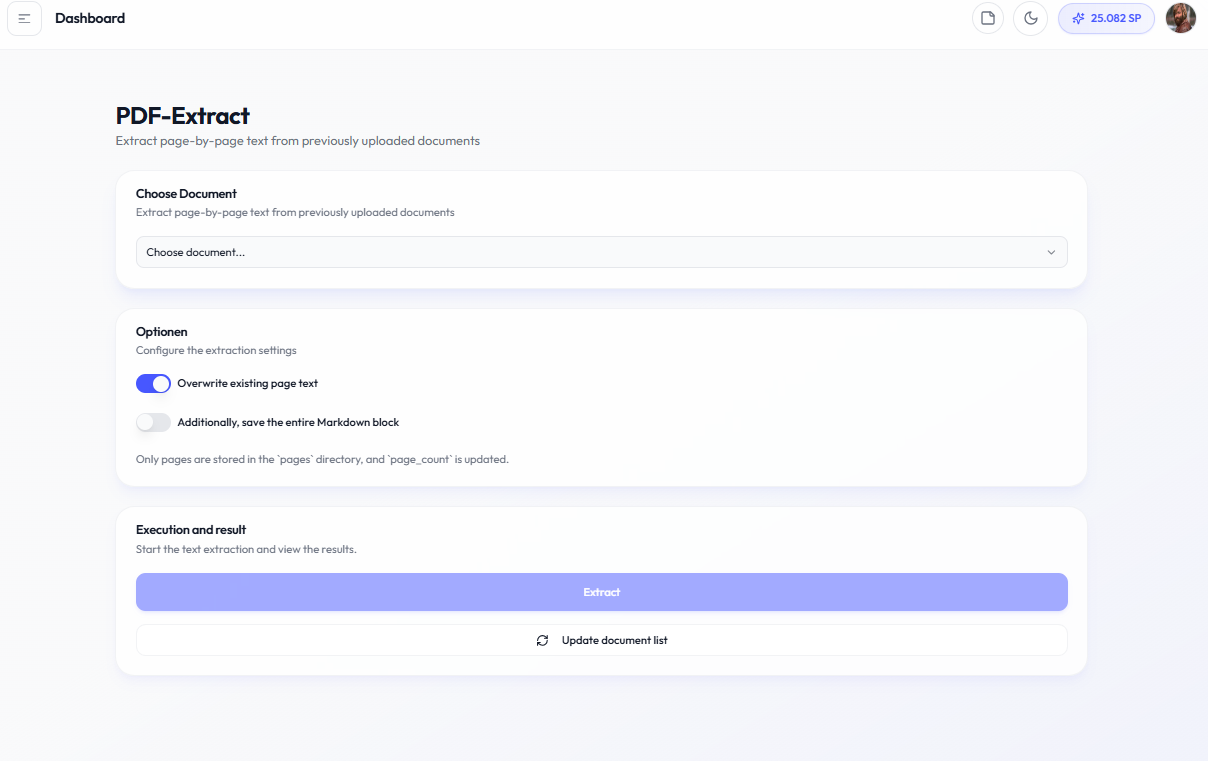
How it works
After extraction
• Document shows "Ready" status in library
• Document becomes available for Theory & Methods selection
• Page count is accurately updated
Important notes
• Extraction may take a few minutes for large documents
• Scanned PDFs may extract poorly - consider using a different source
• Re-extraction overwrites previous page text
• This feature uses minimal Student Points